Amazon Passwordless Sign-In and Passkeys Explained: How to Set Them Up (and Remove Them)
Amazon says 500M+ customers now use passkeys. Set up an Amazon passkey on iPhone, Android, Windows or Mac, delete one, and fix passkey problems.
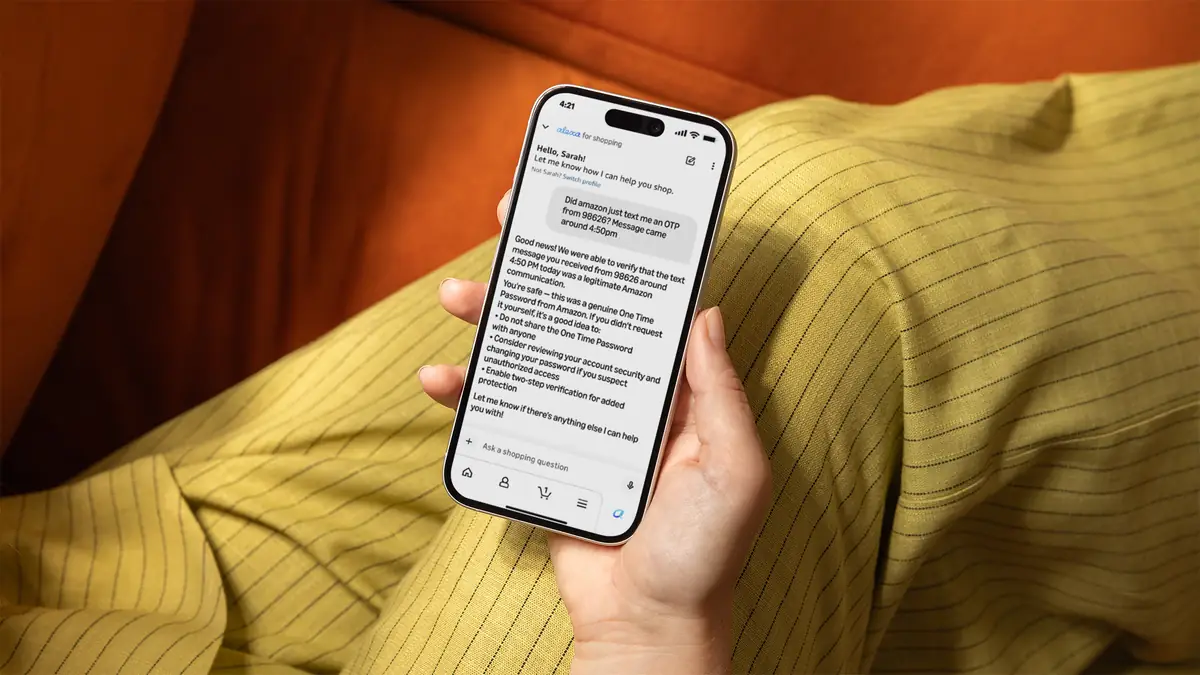
An Amazon passkey lets you sign in with your face, fingerprint or phone PIN instead of a password. To set one up, go to Your Account → Login & Security → Passkey → Set up and follow the prompt on your device. To remove one, go to the same page, tap the delete icon next to the passkey, and then also delete it from your phone's or browser's password manager.
What's new this week? Amazon updated its passwordless sign-in announcement on 20 October 2026. It now says more than 500 million customers have turned on passkeys. Over the past year it added easier enrolment, passkey sign-in on every page where you sign in, passkey support across all its major apps, and prompts to add a passkey when you sign in. Amazon's stated goal is to make passkeys the main way you sign in everywhere you use Amazon.
Below: a plain-English explanation, setup steps for each device, how to delete a passkey, what to do if you lose your phone, and a troubleshooting table.
What is an Amazon passkey, in plain English?
A passkey is a digital key stored on your device (or in your password manager) that only works on the real Amazon. When you sign in, your phone or computer asks you to unlock it with your fingerprint, face scan or screen-lock PIN. That unlocks the key, and you're in.
Why it's safer than a password:
- Nothing to guess, reuse or write down. Amazon describes passkeys exactly this way.
- Phishing-resistant. A passkey is tied to Amazon's real website and apps, so a fake "Amazon" login page can't use it.
- Your face or fingerprint stays on your device. Amazon's help pages say it doesn't store your biometric data or PIN.
- Faster. Amazon says signing in with a passkey is six times faster than with a password.
Your password doesn't disappear when you add a passkey. It stays as a fallback unless you change your other settings.
What did Amazon announce about passkeys in October 2026?
Amazon first launched passkeys in October 2023. Its 20 October 2026 update adds:
| Then (Oct 2023 launch) | Now (Oct 2026 update) |
|---|---|
| Passkeys on web browsers; iOS app rolling out, Android "to follow" | Browsers plus the iOS and Android Amazon Shopping apps, and Audible apps |
| Opt-in from account settings | Smoother enrolment and prompts to add a passkey when you sign in |
| — | Passkey sign-in on every page where customers sign in |
| — | 500 million+ customers have enabled passkeys |
| — | Goal: passkeys as your primary sign-in everywhere you use Amazon |
Amazon also quoted Andrew Shikiar, CEO of the FIDO Alliance (the industry group behind passkeys), supporting the rollout.
Editor's opinion: This isn't a brand-new feature. It's Amazon telling you passkeys are now the default direction. Expect to see more "Create a passkey?" prompts, so it's worth understanding them before you tap "Continue".
How do I set up an Amazon passkey on iPhone?
- Open the Amazon Shopping app (or Safari at amazon.com) and sign in normally.
- Go to Your Account → Login & Security.
- Next to Passkey, tap Set up.
- When iOS asks, confirm with Face ID or Touch ID.
- The passkey is saved to iCloud Keychain (or another passkey manager you've chosen in Settings), so it syncs to your other Apple devices.
Tip: make sure iCloud Keychain is on (Settings → your name → iCloud → Passwords & Keychain). If it's off, the passkey can't sync, and a new iPhone won't have it.
How do I set up an Amazon passkey on Android?
- Open the Amazon Shopping app or Chrome and sign in.
- Go to Your Account → Login & Security.
- Tap Set up next to Passkey.
- Confirm with your fingerprint, face unlock or screen-lock PIN.
- By default the passkey is saved to Google Password Manager and syncs to your Google account. Some phones let you pick another provider instead.
How do I set up an Amazon passkey on Windows or Mac?
- Open amazon.com in Chrome, Edge, Safari or Firefox and sign in.
- Go to Account & Lists → Your Account → Login & Security.
- Click Set up next to Passkey.
- Choose where to save it:
- Windows: Windows Hello (PIN, face or fingerprint) on this PC
- Mac: iCloud Keychain with Touch ID or your Mac password
- "Use a phone or tablet": scan the QR code with your phone, which stores the passkey
- Or a password manager that supports passkeys
- Confirm, and you're done.
How do I delete an Amazon passkey?
Amazon's help says to remove it in two places:
- On Amazon: Your Account → Login & Security → Passkey → tap the delete icon next to the passkey → confirm.
- In your passkey provider: delete the Amazon passkey from iCloud Keychain (Settings → Passwords), Google Password Manager, Windows Hello settings, or your password manager.
Why both? If you skip step 2, your device may keep offering the dead passkey at sign-in, which looks like a "passkey not working" error.
What if I lose my phone with my Amazon passkey on it?
Don't panic. A passkey is useless without your face, fingerprint or PIN, so a thief can't simply use it.
- Sign in another way. Use your password, or another device where your passkey synced (iCloud Keychain or Google Password Manager).
- Delete the lost device's passkey under Login & Security, then create a new one on your new phone.
- Review your sign-in settings. Check your phone number, email and Two-Step Verification methods.
- If you can't get in at all, use Amazon's account-recovery flow. If Two-Step Verification blocks you, Amazon's help page "Recover Your Account after Two-Step Verification Fails" walks you through it.
Best habit: keep a working password and a passkey that syncs to more than one device.
Amazon passkey not working? Troubleshooting table
This is built from Amazon's help guidance plus each platform's documented passkey behaviour.
| Symptom | Likely cause | Fix |
|---|---|---|
| Device keeps offering a passkey that fails | Passkey deleted on Amazon but still saved in your provider | Delete it from iCloud Keychain / Google Password Manager / your manager too (Amazon help) |
| No passkey option on a new phone | Passkey wasn't synced (Keychain or Google sync off) | Sign in with password, then Set up a new passkey |
| "Use a phone" QR code does nothing | Bluetooth off on computer or phone | Turn on Bluetooth on both and keep them near each other |
| Face/fingerprint prompt never appears | No screen lock set on the device | Set a PIN/passcode; passkeys need a device lock |
| Password manager doesn't show the Amazon passkey | Browser or OS doesn't pass passkey requests to that manager | Update the browser/OS, or save the passkey to the built-in platform manager |
| Someone you share the account with can't sign in | Passkeys are per person and per device | They need to set up their own passkey (Amazon's Passkey page says so) |
| Locked out after losing device | Only passkey was on that device | Use password or account recovery, then delete the old passkey |
Amazon passkey scams: what to watch for
Passkeys block fake login pages, but scammers will adapt. Amazon's own scam guidance applies:
- Amazon won't call or text asking you to "verify your passkey" or share a sign-in code (OTP).
- Never approve a passkey or sign-in prompt you didn't start yourself.
- Don't follow links in texts or emails. Open the Amazon app or type amazon.com yourself.
- Report suspicious messages at amazon.com/reportascam.
Also related this month: phishing emails using the Prime settlement as bait. Read our Prime FTC refund guide for what a real notice looks like.
What are users saying about Amazon passkeys?
I couldn't find verifiable r/cybersecurity or Amazon-community posts about the October 2026 update to quote and link, so I'm not quoting anyone. The questions readers keep asking:
- Can I turn off my Amazon password completely once I have a passkey?
- Does each person in a shared household account need a separate passkey?
- Will passkeys work on Fire TV, Kindle and Alexa devices?
- Why does my password manager save the passkey but not offer it at sign-in?
Related reading
- Starting a new seasonal job? Set up your passkey first. See Amazon is hiring 300,000 people for the 2026 holidays.
- Is Amazon Prime worth it in 2026?
FAQ
What is an Amazon passkey?
It's a sign-in method that uses your device's fingerprint, face scan or screen-lock PIN instead of a password. The key is stored on your device or in your password manager.
How do I set up an Amazon passkey?
Go to Your Account → Login & Security, tap Set up next to Passkey, and confirm with your device's biometrics or PIN.
How do I delete an Amazon passkey?
Delete it under Login & Security → Passkey on Amazon, then also remove it from your passkey provider (iCloud Keychain, Google Password Manager, etc.).
Is an Amazon passkey safer than a password?
Yes. It can't be guessed or reused, and it only works on Amazon's genuine site and apps, which makes phishing much harder.
What happens if I lose my phone?
Sign in with your password or a synced device, delete the old passkey, and create a new one. Use account recovery if you're locked out.
Can my family share my Amazon passkey?
No. Amazon says anyone sharing the account who wants to sign in with a passkey must set up their own.
Does Amazon store my fingerprint or face?
No. Amazon says it doesn't store your biometric data or PIN; they stay on your device.
What did Amazon announce in October 2026?
An update saying 500 million+ customers use passkeys, passkey support across its major apps, and a goal to make passkeys the primary sign-in method.
Sources
- Amazon (aboutamazon.com): Amazon is making it easier and safer for you to access your account with passwordless sign-in (updated 20 Oct 2026) — https://www.aboutamazon.com/news/retail/amazon-passwordless-sign-in-passkey
- Amazon help: How to keep your account safe and secure — https://www.amazon.com/gp/help/customer/display.html?nodeId=TiUveBhtpkJMTocQ3G
- Amazon help: Recover Your Account after Two-Step Verification Fails — https://www.amazon.com/gp/help/customer/display.html?nodeId=GU3SL3GTHLHPDQ2H
- Amazon help: What is Two-Step Verification? — https://www.amazon.com/gp/help/customer/display.html?nodeId=TMmdiAyib3Uq4SCdLm
- Amazon: 6 tips to help you spot and avoid scams impersonating Amazon — https://www.aboutamazon.com/news/retail/how-to-avoid-amazon-scams
- FIDO Alliance (2023 launch coverage) — https://fidoalliance.org/amazon-is-making-it-easier-and-safer-for-you-to-access-your-account-with-passwordless-sign-in
Featured image: Amazon. Source